
You click a link, stare at a blank screen, and hit the back button. Your visitors do exactly the same when a site drags. Good WordPress website performance means pages load quickly, respond to taps, and stay stable while they appear.
For a small business, that first impression matters. A slow or jumpy page can make a good service look less professional, and visitors may leave before they read a word. The good news is that most problems come from a handful of common causes, and you can find them with free tools.
This guide explains what performance really covers, which numbers matter, and what usually causes problems. You’ll also get a simple testing routine and a maintenance plan you can follow without being a developer.
What Does WordPress Website Performance Actually Include?

Put simply, WordPress website performance is how quickly and smoothly your site loads and responds. It covers how fast the server replies, how soon the main content appears, how quickly the page reacts to clicks, and whether the layout stays still. A site can feel fast on a laptop and still feel clumsy on an older phone.
Performance also affects real business results. Slow pages make it harder to read content, submit a form, or finish a checkout. Google uses page experience signals in search, but strong scores don’t guarantee higher rankings. Treat speed as one part of a healthy site, not a shortcut.
The Metrics Worth Tracking

Start with Core Web Vitals, which measure loading, responsiveness, and visual stability. Add server response time, often called time to first byte (TTFB), because a slow server can hold back everything else. The table shows the targets Google recommends.
| Metric | What it tells you | Good target |
|---|---|---|
| Largest Contentful Paint (LCP) | How quickly the main content appears | 2.5 seconds or less |
| Interaction to Next Paint (INP) | How quickly the page responds to input | Under 200 milliseconds |
| Cumulative Layout Shift (CLS) | How much the layout jumps while loading | Below 0.1 |
| Time to First Byte (TTFB) | How fast the server starts replying | About 0.8 seconds or less |
Lab tests and real-user data can disagree. A lab test runs in a controlled setting, while field data reflects real visitors on different devices and networks. Check both when you can, and read the recommendations in each report instead of chasing a perfect number.
What Slows Down a WordPress Site?
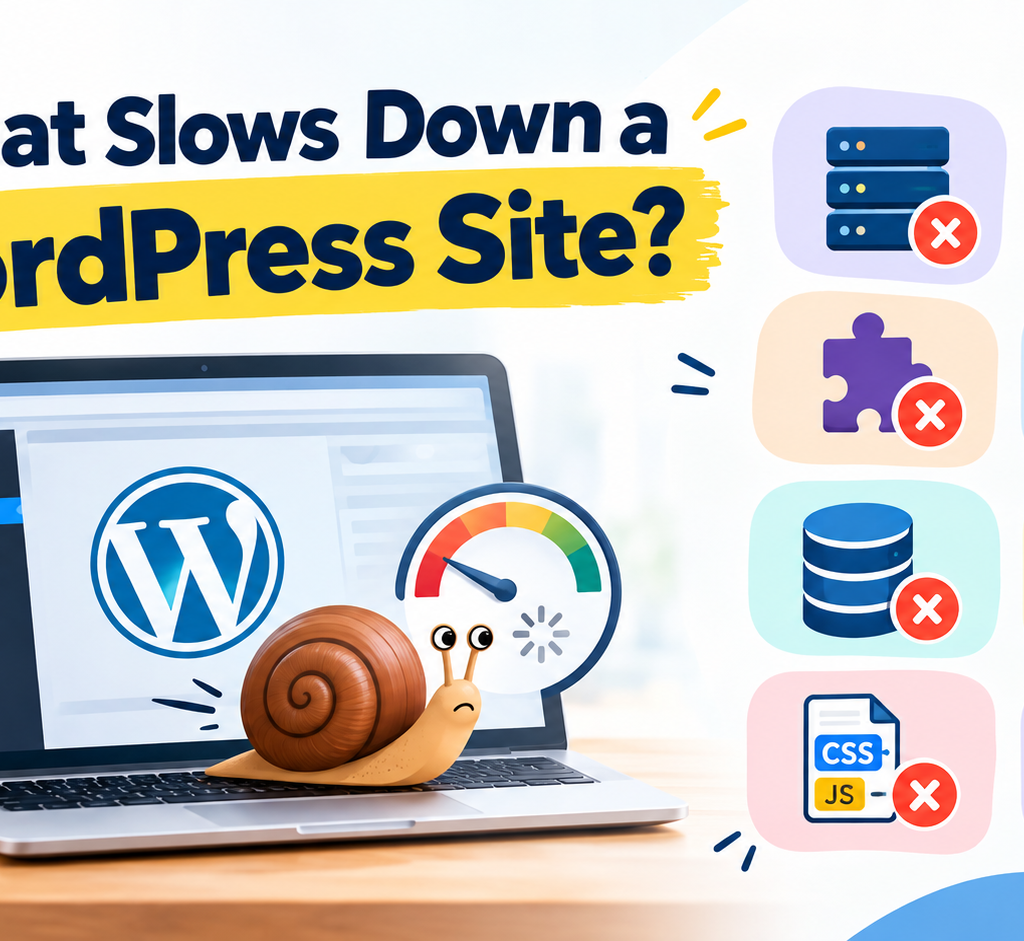
Slow performance rarely has one cause. It usually comes from infrastructure, such as hosting limits or distance from your visitors, combined with software issues like heavy themes or clashing plugins. Finding the biggest cause first saves time.
Look at the server side first, then at what visitors download. The sections below cover the most common culprits.
Hosting and Server Resources
Your host builds each page and delivers it. If the plan is short on CPU or memory, or runs an outdated PHP version, every other fix has a lower ceiling. Common signs include slow responses even on light pages and slowdowns during traffic spikes.
Themes and Plugins
Feature-packed themes and plugins often load scripts and styles on every page, even where they aren’t needed. One poorly built plugin can cost more than several lightweight ones. Judge each by what it does on your key pages, not by how many you have.
Database and PHP
WordPress queries its database to build pages. Over time, leftover data, heavy plugin queries, and old PHP versions add delay. A tool such as Query Monitor can show which queries and components take the longest.
Images and Third-Party Scripts
Oversized images, chat widgets, ad tags, and tracking scripts add download and processing work. They also tend to cause layout shifts. Review them regularly and remove anything nobody uses.
Measure before you change anything, so you know whether a fix helped. Test your homepage plus a few key pages, such as a service page, a blog post, and your contact page. Run each on mobile and desktop, and write the results down.
Then keep watching. Performance drifts as you add content, plugins, and scripts, so a single test isn’t enough. These free tools cover most needs:
- Google PageSpeed Insights: lab results and real-user data with specific recommendations.
- Search Console Core Web Vitals report: real-user trends across groups of pages.
- WordPress Site Health: warnings about PHP versions and configuration.
- Query Monitor: slow database queries and plugin impact.
Practical Ways to Improve WordPress Website Performance
Work in order of impact and change one thing at a time. That makes it easy to see what helped and to undo anything that breaks a menu, form, or checkout. Take a backup before every change.
These improvements tend to pay off most:
- Update PHP: move to a supported version that your theme and plugins work with.
- Use one caching solution: choose your host’s built-in caching or a single plugin, not several.
- Optimize images: resize before uploading, use formats like WebP, and lazy-load images below the fold. Don’t lazy-load your main top-of-page image.
- Trim plugins: remove unused ones and replace overlapping ones.
- Load extras only where needed: fonts, sliders, and animations shouldn’t run on every page.
- Consider a CDN: it helps most when visitors are spread across several regions.
Common Mistakes to Avoid
The most common mistake is installing several optimization plugins at once. Their caching, minification, and script-delay features overlap and can break pages. Pick one tool, turn features on gradually, and test after each change.
Another mistake is optimizing for a score instead of for visitors. Delaying or combining scripts can lift a number while breaking your mobile menu or contact form. After every significant change, test real actions on a real phone.
A Simple Maintenance Routine
Steady WordPress website performance comes from habit, not a one-off project. A light routine you can actually keep beats an ambitious plan you abandon. Keep short notes on what you changed and what the results were, so problems are easier to trace.
| When | What to do |
|---|---|
| Monthly | Check PageSpeed Insights and Search Console. Update WordPress, themes, and plugins after a backup. |
| Quarterly | Audit plugins, review images and third-party scripts, and check hosting resource usage. |
| After major changes | Retest your key pages on mobile and desktop. |
FAQs
What is a good score for WordPress website performance?
There’s no single perfect score. Aim to pass Core Web Vitals: LCP of 2.5 seconds or less, INP under 200 milliseconds, and CLS below 0.1.
Does hosting affect WordPress website performance?
Yes. Slow servers, limited resources, and outdated PHP versions can hold back a site no matter how well it’s optimized.
How many plugins are too many?
There’s no fixed number. What each plugin does on your pages matters more than the total count.
Is a caching plugin enough to fix a slow site?
Not always. Caching helps, but slow hosting, heavy images, and bulky scripts still need attention.
How often should I test my site’s performance?
Test after major design, plugin, or hosting changes, and review your key pages monthly.
Conclusion
Performance isn’t one number. It’s a mix of server response, loading, responsiveness, and stability, and each part can be measured. Test first, fix the biggest issue, and check again before moving on.
Keep it simple from here. One caching tool, sensible images, a lean plugin list, and a monthly check will do more than a pile of overlapping settings. Small, steady habits keep a site fast long after the first round of fixes.